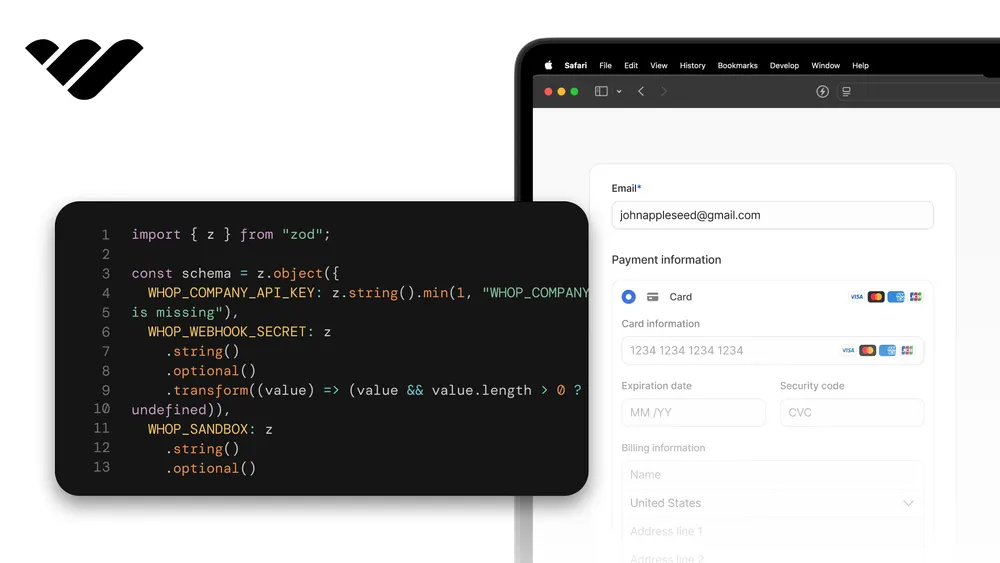
Add promo codes to your app or website with Whop's checkout, on hosted links or embedded with Whop Elements, and create, check, and confirm codes from your backend.
Key takeaways
- You never build a promo code field, because Whop's checkout already has one, on hosted checkout links and in the Elements checkout you embed on your own site.
- A code can arrive with the link, through
?promoCode=on a hosted checkout link or thepromoCodeoption on the Elements checkout, so the buyer sees the discounted price first. - A dead code never breaks the sale, because the checkout opens at the full price and tells the buyer why the code did not apply.
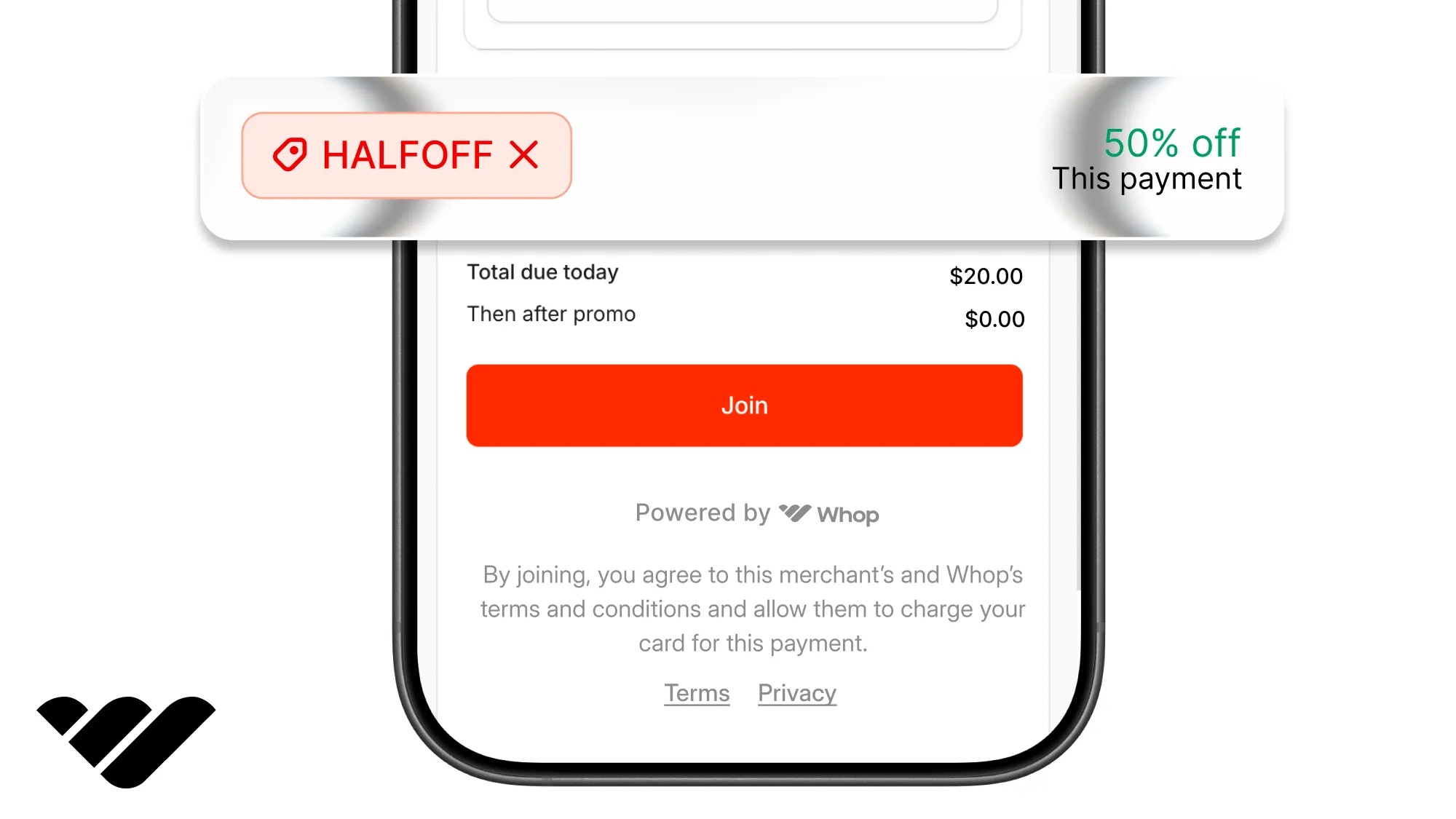
You can add promo codes to your app or website without having to build a promo code field on your checkout pages. Whop's checkout already has one, whether buyers pay on a hosted checkout link or in a checkout you embed with Whop Elements.
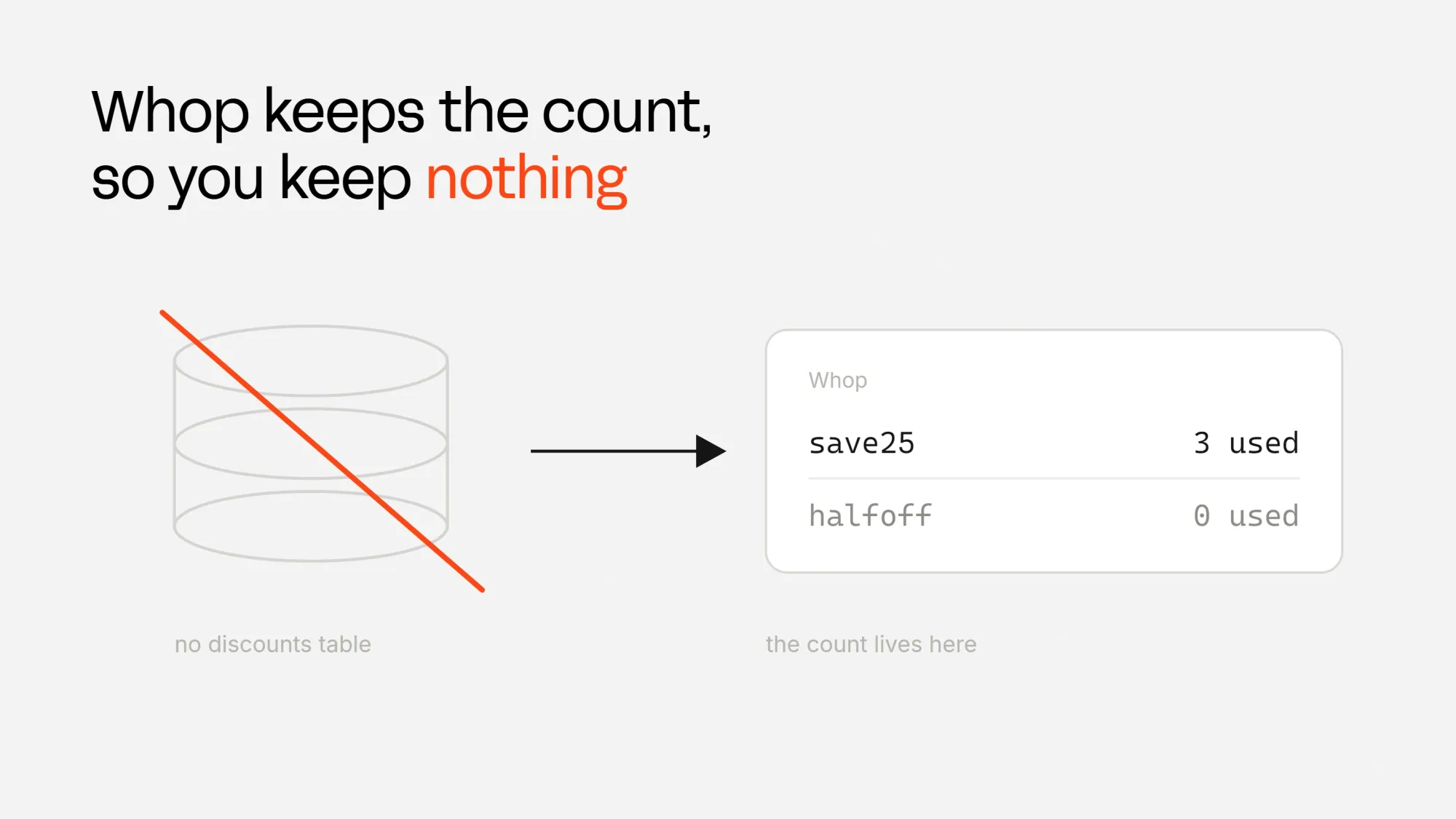
Whop stores the code, its rules, and its usage count, and works out the discounted price inside its own checkout.
This means you don't have to keep your promo codes in a database or manually update anything.
If you sell on Whop and only need codes made from the dashboard, our promo codes guide for creators covers that.
You can try the whole flow in our companion demo and its repository.
Create a promo code in the dashboard
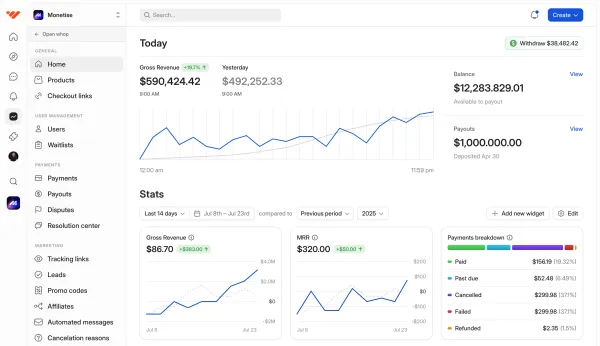
There are many ways to create promo codes. With Whop, you can use the dashboard, the CLI, or the API, but the easiest way is the dashboard. To create a promo code on the Whop dashboard:
- Go to whop.com and open your whop
- Go to its dashboard and find the "More" dropdown
- Under it, click on Promo codes and on that page, click Create promo code
- Then set the promo code itself and the discount, which can be a percentage or a fixed amount
- Adjust other settings like discount duration, eligible users, and affiliates and then click "Create promo code" at the top right of the "Create promo code" pop-up
Whop saves every code in lowercase, so LAUNCH25 is stored as launch25, and buyers can type it in any case. Your checkout also needs a plan, which is the price the code discounts. Its ID starts with plan_ and sits at the end of the product's checkout link.
Just share the link with hosted checkouts
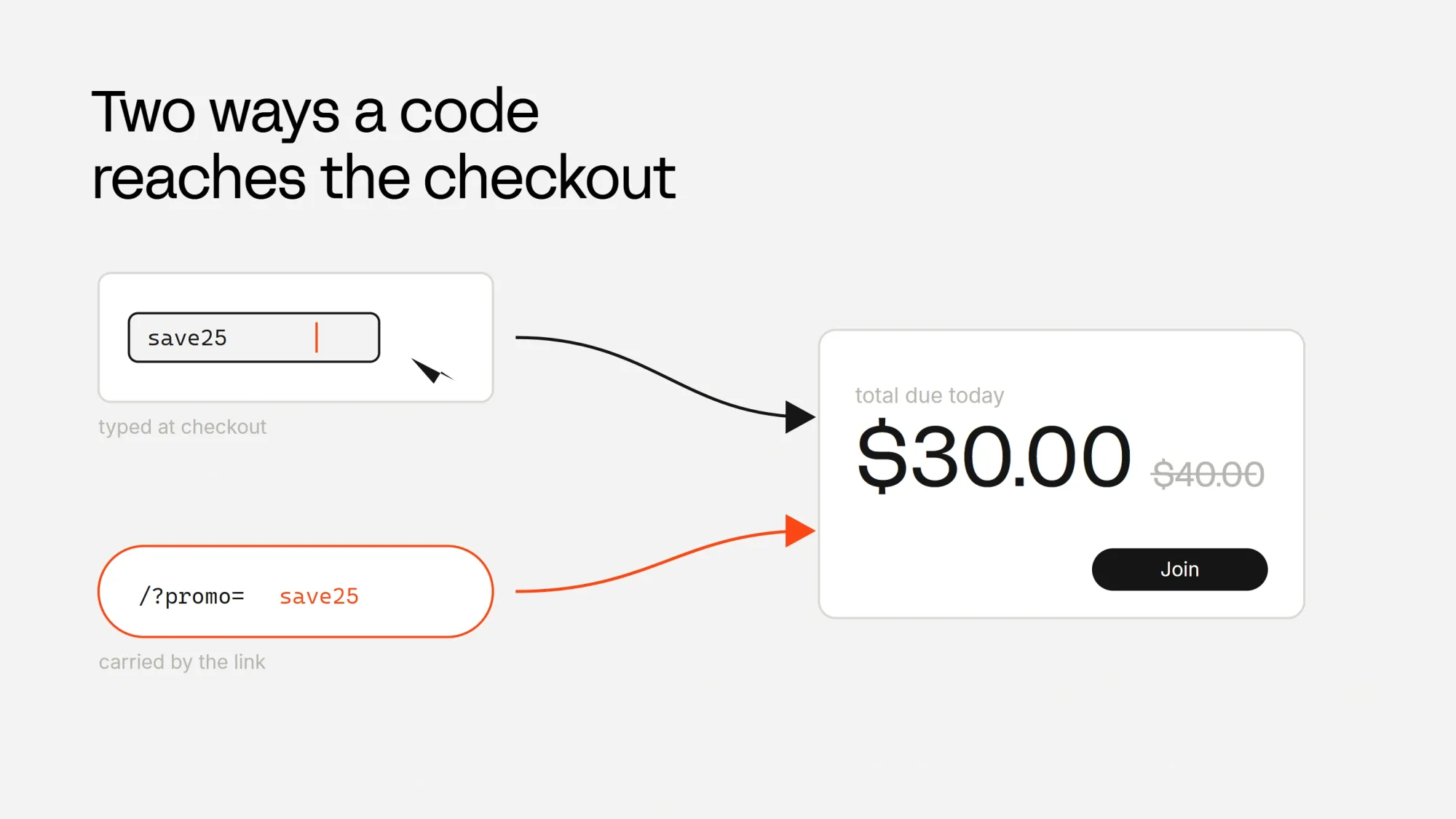
Your customers make their payments directly on Whop-hosted checkout links. You don't have to build anything. Every checkout page has an "Add promo code" button and the discount shows up the moment the buyer applies the code.
If you want buyers to land with the code already applied, add ?promoCode=yourPromoCode to the hosted checkout link, so the buyer sees the discounted price before anything else.
Embedded checkouts with Whop Elements
If you want the checkout on your own pages, Whop Elements renders it there. Embedding the checkout keeps buyers on your site, and it was part of how Nickel lifted payment completion from 29% to 47%. Once it's running, you can also turn on Apple Pay in the same checkout.
Once the buyer pays, Whop takes over and sends them to a Whop page to finish setting up an account and open what they bought. Later in this guide, we send buyers back to your own page instead.
First, let's install the Elements packages:
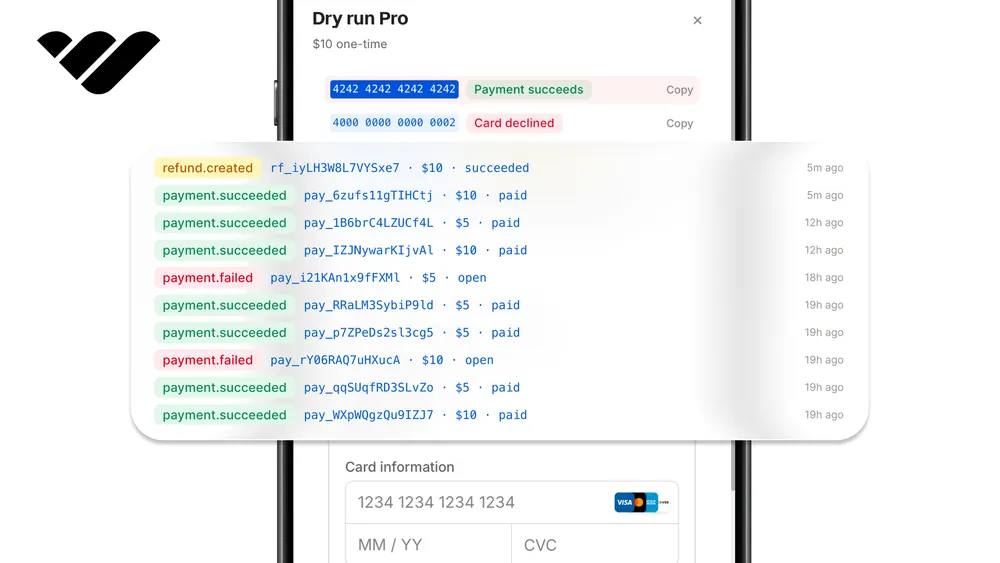
npm install @whop/elements @whop/elements-reactIn a Next.js app, the checkout is one small component that takes the plan and an optional promo code. While you test with a plan on the Whop sandbox, pass environment="sandbox" and pay with the test card 4242 4242 4242 4242, so you can avoid moving real money for tests.
Go to components/ and create a file called PromoCheckout.tsx with the following content:
"use client";

import { loadWhop } from "@whop/elements";
import { WhopElements, Checkout, CheckoutElement } from "@whop/elements-react";

export function PromoCheckout({
  plan,
  promoCode,
  environment = "production",
}: {
  plan: string;
  promoCode?: string;
  environment?: "sandbox" | "production";
}) {
  return (
    <WhopElements elements={loadWhop()} environment={environment}>
      <Checkout plan={plan} promoCode={promoCode}>
        <CheckoutElement />
      </Checkout>
    </WhopElements>
  );
}
The page reads the code from the web address and hands it to the checkout, so /?promo=launch25 opens with launch25 applied.
Then update app/page.tsx with the following content:
import { PromoCheckout } from "@/components/PromoCheckout";

export default async function Home({
  searchParams,
}: {
  searchParams: Promise<{ promo?: string }>;
}) {
  const { promo } = await searchParams;

  return (
    <main>
      <h1>Promo demo pass</h1>
      <PromoCheckout plan="plan_XXXXXXXXX" promoCode={promo} environment="sandbox" />
    </main>
  );
}contentSecurityPolicy() from @whop/elements returns the exact sources, and its merge() adds them to the policy you already have.Adding checkout to any website
If you're not using React, that's no problem. Elements also works without React.
Paste this where the checkout should appear on any web page and it reads ?promo= from the address the same way:
<div id="checkout"></div>

<script src="https://cdn.whop.com/elements/amber/elements.js" data-whop-elements></script>
<script type="module">
  const promoCode = new URLSearchParams(location.search).get("promo") ?? undefined;

  // Sandbox while you test. Leave the option out in production.
  const checkout = window.WhopElements({ environment: "sandbox" }).checkout.create({
    plan: "plan_XXXXXXXXX",
    promoCode,
  });

  checkout.create("checkout").mount("#checkout");
</script>
When a code does not work
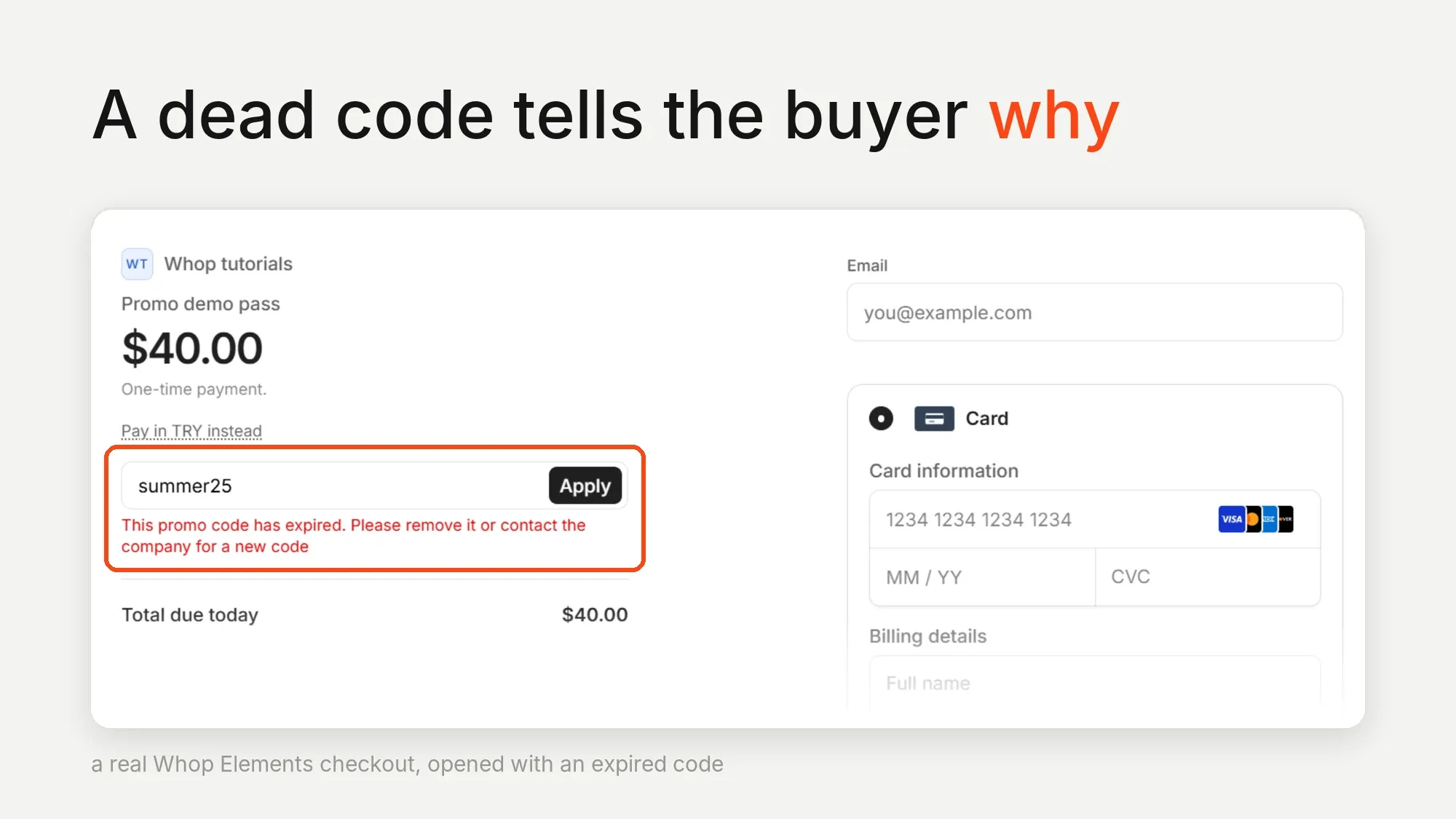
Promo codes stop working when they expire, you pause them, or any limit you set in the dashboard, like the stock, is reached. The checkout treats all codes the same way. It will start with the full price, keep the code in the promo field, and show the reason, like "This promo code has expired."
Now you have everything you need to accept promo codes at checkout. In the rest of this guide, we create codes, check them, and confirm discounts from our own backend.
Managing promo codes from the backend
Managing promo codes from the backend takes a server-side client, an API key, and a few environment variables. From this point on in the tutorial, we are going to run everything on the Whop Sandbox so we can avoid moving real money for the tests.
Get a Company API key
In the sandbox dashboard, open the Developer page and create a key under Company API keys with these permissions:
promo_code:createpromo_code:basic:readpromo_code:deleteaccess_pass:basic:readpayment:basic:readplan:basic:readpromo_code:update
The receipt section also creates a checkout configuration, which needs:
checkout_configuration:createcheckout_configuration:basic:readplan:createaccess_pass:createaccess_pass:update
Install the packages
We need the Whop server SDK, and Zod, which checks that incoming data has the shape we expect:
npm install @whop/sdk zodEnvironment variables
Add these to .env.local. Add them to your hosting provider too, when you deploy.
| Variable | Example | How to get it |
|---|---|---|
WHOP_COMPANY_API_KEY | apik_... | Sandbox dashboard > Developer > Company API keys. |
WHOP_COMPANY_ID | biz_... | From the sandbox dashboard URL. |
WHOP_PRODUCT_ID | prod_... | The product the codes discount. |
WHOP_PLAN_ID | plan_... | The plan buyers check out with. |
APP_URL | https://your-site.com | Your site's address. Whop sends buyers back here after they pay, and only to https. |
WHOP_WEBHOOK_SECRET | ws_... | Sandbox dashboard > Developer > Webhooks, from the Secret column once you create the webhook. |
WHOP_SANDBOX | true | Set manually. Remove it in production. |
ADMIN_API_KEY | a long random string | Set manually. Your admin tools send it to create and manage codes. |
Create the Whop client
The Whop SDK exports a WhopClient class that takes your API key, and an environment setting that switches it between the sandbox and production. We create it once and reuse it everywhere.
Go to lib/ and create a file called whop.ts with the following content:
import { WhopClient, WhopEnvironment } from "@whop/sdk";

let cached: WhopClient | null = null;

export function getWhop(): WhopClient {
  if (!cached) {
    cached = new WhopClient({
      token: process.env.WHOP_COMPANY_API_KEY as string,
      environment:
        process.env.WHOP_SANDBOX === "true"
          ? WhopEnvironment.Sandbox
          : WhopEnvironment.Production,
    });
  }
  return cached;
}
The number Whop gives back
When you create a 25% promo code using the API, you send just 25, but when you ask Whop about the code later, you get 0.25. With fixed-amount codes, on the other hand, a $10 discount goes in as 10 and comes back as 10.
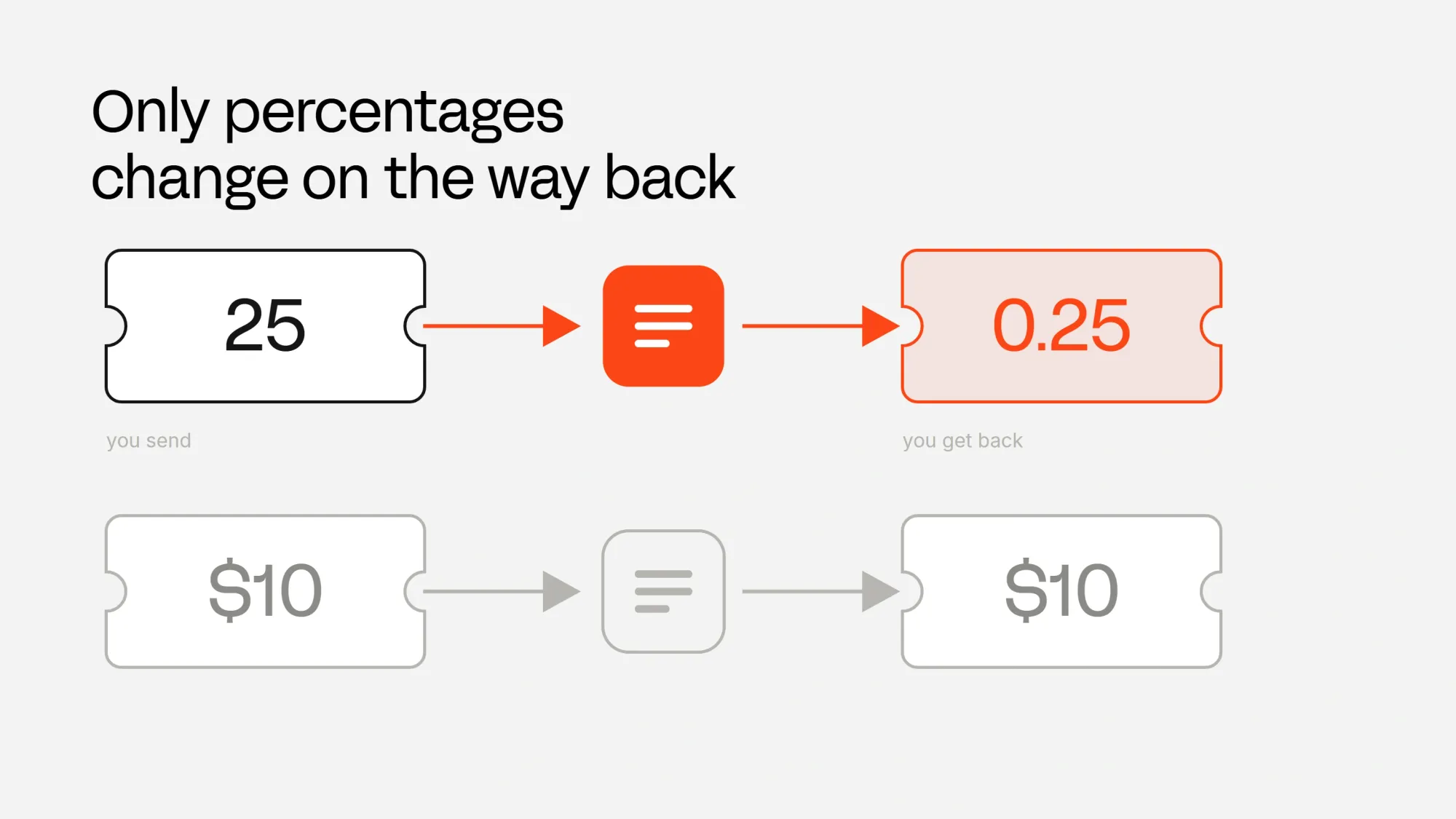
So let's fix the number in one place, and let the rest of the app work with normal percentages. Go to lib/ and create a file called promo.ts with the following content:
export type PromoType = "percentage" | "flat_amount";
export type PromoStatus = "active" | "inactive" | "archived";

export interface PromoSummary {
  id: string;
  code: string;
  promoType: PromoType;
  displayAmount: number;
  rawAmountOff: number;
  label: string;
  status: PromoStatus;
  uses: number;
  stock: number;
  unlimitedStock: boolean;
  expiresAt: string | null;
}

export interface RawPromoCode {
  id: string;
  code: string | null;
  promo_type: string;
  amount_off: number;
  status: string;
  uses: number;
  stock: number;
  unlimited_stock: boolean;
  expires_at: string | null;
}

export function toDisplayAmount(promoType: PromoType, rawAmountOff: number) {
  if (promoType !== "percentage") return rawAmountOff;
  // Math.round because 0.15 * 100 is 15.000000000000002 in binary floating point.
  return Math.round(rawAmountOff * 100);
}

export function describeDiscount(promoType: PromoType, displayAmount: number) {
  return promoType === "percentage"
    ? `${displayAmount}% off`
    : `$${displayAmount.toFixed(2)} off`;
}

export function previewPrice(
  price: number,
  promoType: PromoType,
  displayAmount: number,
) {
  const discounted =
    promoType === "percentage"
      ? price * (1 - displayAmount / 100)
      : price - displayAmount;
  return Math.max(0, Math.round(discounted * 100) / 100);
}

export function toSummary(raw: RawPromoCode): PromoSummary {
  const promoType: PromoType =
    raw.promo_type === "flat_amount" ? "flat_amount" : "percentage";
  const displayAmount = toDisplayAmount(promoType, raw.amount_off);

  return {
    id: raw.id,
    code: raw.code ?? "",
    promoType,
    displayAmount,
    rawAmountOff: raw.amount_off,
    label: describeDiscount(promoType, displayAmount),
    status: raw.status as PromoStatus,
    uses: raw.uses,
    stock: raw.stock,
    unlimitedStock: raw.unlimited_stock,
    expiresAt: raw.expires_at,
  };
}
Create promo codes from an API route
Now, let's create the route that our app calls to create promo codes. Whop calls the business that owns a code an account, so our company ID goes in as account_id. promoCodes.list resolves to a page of results, so we await the call first and then walk the page with for await.
One field you should keep in mind is promo_duration_months, which sets how many months the discount stays on a subscription. Send 0 to keep it forever, 1 to apply it to the first payment only, or a bigger number for that many payments.
The route also takes an optional expiresAt timestamp, so you can create a code that runs out and see what the checkout does with it.
Those are the fields we use here. The create promo code reference lists the rest, and none of them can change after the code exists, so choose them carefully.
This route creates real discounts and lists every code you have, so it only answers requests that carry your admin key. Whatever calls it, such as your dashboard or a campaign script, sends that key in the Authorization header.
We keep that check in its own file, because the route for pausing and archiving codes uses it too. Go to lib/ and create a file called admin.ts with the following content:
import { timingSafeEqual } from "node:crypto";

export function isAdmin(request: Request) {
  const key = process.env.ADMIN_API_KEY;
  if (!key) return false;
  const expected = Buffer.from(`Bearer ${key}`);
  const given = Buffer.from(request.headers.get("authorization") ?? "");
  return given.length === expected.length && timingSafeEqual(given, expected);
}
Go to app/api/promo-codes/ and create a file called route.ts with the following content:
import { z } from "zod";
import { WhopError } from "@whop/sdk";
import { getWhop } from "@/lib/whop";
import { isAdmin } from "@/lib/admin";
import { toSummary, type PromoSummary, type RawPromoCode } from "@/lib/promo";

const createSchema = z.object({
  code: z
    .string()
    .trim()
    .min(3)
    .max(40)
    .regex(/^[A-Za-z0-9_-]+$/, "Letters, numbers, hyphen and underscore only"),
  promoType: z.enum(["percentage", "flat_amount"]),
  amount: z.number().positive(),
  durationMonths: z.number().int().min(0).max(60),
  stock: z.number().int().positive().nullable(),
  onePerCustomer: z.boolean(),
  newUsersOnly: z.boolean(),
  expiresAt: z.iso.datetime().optional(),
});

export async function GET(request: Request) {
  if (!isAdmin(request)) {
    return Response.json({ error: "unauthorized" }, { status: 401 });
  }

  const codes: PromoSummary[] = [];
  for await (const raw of await getWhop().promoCodes.list({
    account_id: process.env.WHOP_COMPANY_ID as string,
  })) {
    codes.push(toSummary(raw as unknown as RawPromoCode));
  }
  return Response.json({ codes });
}

export async function POST(request: Request) {
  if (!isAdmin(request)) {
    return Response.json({ error: "unauthorized" }, { status: 401 });
  }

  const body: unknown = await request.json().catch(() => null);
  const parsed = createSchema.safeParse(body);
  if (!parsed.success) {
    return Response.json({ error: "invalid_input" }, { status: 400 });
  }
  const input = parsed.data;

  if (input.promoType === "percentage" && (input.amount < 1 || input.amount > 100)) {
    return Response.json(
      { error: "A percentage must be between 1 and 100." },
      { status: 400 },
    );
  }

  try {
    const created = await getWhop().promoCodes.create({
      account_id: process.env.WHOP_COMPANY_ID as string,
      code: input.code,
      promo_type: input.promoType,
      amount_off: input.amount,
      base_currency: "usd",
      new_users_only: input.newUsersOnly,
      promo_duration_months: input.durationMonths,
      ...(input.stock === null
        ? { unlimited_stock: true }
        : { stock: input.stock, unlimited_stock: false }),
      one_per_customer: input.onePerCustomer,
      product_id: process.env.WHOP_PRODUCT_ID as string,
      ...(input.expiresAt ? { expires_at: input.expiresAt } : {}),
    });

    return Response.json({ code: toSummary(created as unknown as RawPromoCode) });
  } catch (error: unknown) {
    return Response.json({ error: whopMessage(error) }, { status: 400 });
  }
}

function whopMessage(error: unknown) {
  if (error instanceof WhopError) {
    const body = error.body as { error?: { message?: string } } | undefined;
    if (body?.error?.message) return body.error.message;
  }
  return "Whop turned this promo code down.";
}
To try it from the terminal, send a request like the one below with your admin key. It answers with the new code's summary, so LAUNCH25 comes back as launch25 with displayAmount: 25 and label: "25% off".
curl -X POST http://localhost:3000/api/promo-codes \
  -H "Authorization: Bearer $ADMIN_API_KEY" \
  -H "Content-Type: application/json" \
-d '{"code":"LAUNCH25","promoType":"percentage","amount":25,"durationMonths":1,"stock":100,"onePerCustomer":true,"newUsersOnly":false}'LAUNCH25 is saved as launch25. Two working codes also cannot share the same name.If someone picks a name that is taken, Whop sends back a clear message, and we pass that message straight to them.
Check the code before the checkout
The checkout tells the buyer when a code is dead, but sometimes we want to know earlier, for example to show the discounted price on our own page before the buyer touches the checkout.
You can ask for a code by its promo_ ID, and you can filter a list by company, product, plan, or status, but not by the name itself. Expired codes also still come back as active, so checking the status on its own isn't enough, and we compare the expiry date with the current time ourselves.
So we ask for the list and match the name in our own code. That is fine for tens of codes. With thousands, keep your own index of code names and their promo_ IDs instead.
We put the check in one function, so the API route and the page can share it. It reads the price from the plan itself, so the preview starts from the same price as the checkout.
Go to lib/ and create a file called promo-lookup.ts with the following content:
import { getWhop } from "@/lib/whop";
import { toSummary, previewPrice, type PromoSummary, type RawPromoCode } from "@/lib/promo";

export type CodeCheck =
  | { usable: true; promo: PromoSummary; preview: number }
  | { usable: false; reason: string };

export async function checkPromoCode(code: string): Promise<CodeCheck> {
  const wanted = code.trim().toLowerCase();
  if (!wanted) {
    return { usable: false, reason: "No code given." };
  }

  for await (const raw of await getWhop().promoCodes.list({
    account_id: process.env.WHOP_COMPANY_ID as string,
  })) {
    const promo = toSummary(raw as unknown as RawPromoCode);
    if (promo.code !== wanted) continue;

    if (promo.status === "archived") {
      return { usable: false, reason: "That code was retired." };
    }
    if (promo.status !== "active") {
      return { usable: false, reason: "That code is paused." };
    }
    if (!promo.unlimitedStock && promo.uses >= promo.stock) {
      return { usable: false, reason: "That code is used up." };
    }
    if (promo.expiresAt && new Date(promo.expiresAt).getTime() < Date.now()) {
      return { usable: false, reason: "That code has expired." };
    }

    if (raw.product && raw.product.id !== process.env.WHOP_PRODUCT_ID) {
      return { usable: false, reason: "That code is for a different product." };
    }
    if (raw.existing_memberships_only) {
      return { usable: false, reason: "That code only works on an existing membership." };
    }

    const variant = await getWhop().variants.retrieve({ id: process.env.WHOP_PLAN_ID as string });

    return {
      usable: true,
      promo,
      preview: previewPrice(variant.initial_price, promo.promoType, promo.displayAmount),
    };
  }

  return { usable: false, reason: "No code by that name." };
}
Go to app/api/promo-codes/lookup/ and create a file called route.ts with the following content:
import { checkPromoCode } from "@/lib/promo-lookup";

export async function GET(request: Request) {
  const code = new URL(request.url).searchParams.get("code") ?? "";
  return Response.json(await checkPromoCode(code));
}
Now the page can run the same check before the checkout opens. A working code shows the price the buyer is about to pay, and a dead one shows our reason above a checkout at the full price. Update app/page.tsx with the following content:
import { PromoCheckout } from "@/components/PromoCheckout";
import { checkPromoCode } from "@/lib/promo-lookup";

export default async function Home({
  searchParams,
}: {
  searchParams: Promise<{ promo?: string }>;
}) {
  const { promo } = await searchParams;
  const check = promo ? await checkPromoCode(promo) : null;

  return (
    <main>
      <h1>Promo demo pass</h1>
      {check && !check.usable && <p>{check.reason} The checkout opens at the full price.</p>}
      {check?.usable && (
        <p>
          {check.promo.label} with {check.promo.code}, so you pay ${check.preview.toFixed(2)}
        </p>
      )}
      <PromoCheckout
        plan={process.env.WHOP_PLAN_ID as string}
        promoCode={check?.usable ? check.promo.code : undefined}
        environment={process.env.WHOP_SANDBOX === "true" ? "sandbox" : "production"}
      />
    </main>
  );
}
Check the discount on the receipt
Everything up to this point is what the checkout said about the price. The number that settles it sits on the payment itself, and only your server can read it.
First we want to get the buyer back to our page once the payment is complete. The Elements checkout calls onComplete with the payment's ID, but if the buyer is new to Whop, they are sent to Whop to set up an account right after the checkout.
returnUrl doesn't bring buyers back here. It only covers off-site steps like a bank page.The checkout configuration brings buyers back. It names the plan and a redirect_url, and Whop sends the buyer there after paying, with payment_id and status=success added to the address. The promoCode option still works on top of it. Whop only redirects to an https address, so APP_URL has to be your deployed site, or an https tunnel to your computer while you test.
We only need one configuration per plan, so we create it the first time a page asks for it and keep its ID. Go to lib/ and create a file called checkout.ts with the following content:
import { getWhop } from "@/lib/whop";

let cached: Promise<string> | null = null;

export function getCheckoutConfiguration() {
  cached ??= getWhop()
    .checkoutConfigurations.create({
      account_id: process.env.WHOP_COMPANY_ID as string,
      plan_id: process.env.WHOP_PLAN_ID as string,
      redirect_url: `${process.env.APP_URL}/`,
    })
    .then((configuration) => configuration.id)
    .catch((error: unknown) => {
      cached = null;
      throw error;
    });
  return cached;
}
The checkout now mounts from the configuration instead of the plan. Update components/PromoCheckout.tsx with the following content:
"use client";

import { loadWhop } from "@whop/elements";
import { WhopElements, Checkout, CheckoutElement } from "@whop/elements-react";

export function PromoCheckout({
  checkoutConfiguration,
  promoCode,
  environment = "production",
}: {
  checkoutConfiguration: string;
  promoCode?: string;
  environment?: "sandbox" | "production";
}) {
  return (
    <WhopElements elements={loadWhop()} environment={environment}>
      <Checkout checkoutConfiguration={checkoutConfiguration} promoCode={promoCode}>
        <CheckoutElement />
      </Checkout>
    </WhopElements>
  );
}
Once the buyer is back on our page, we ask Whop for the payment named in the address. The payment gives us all the details:
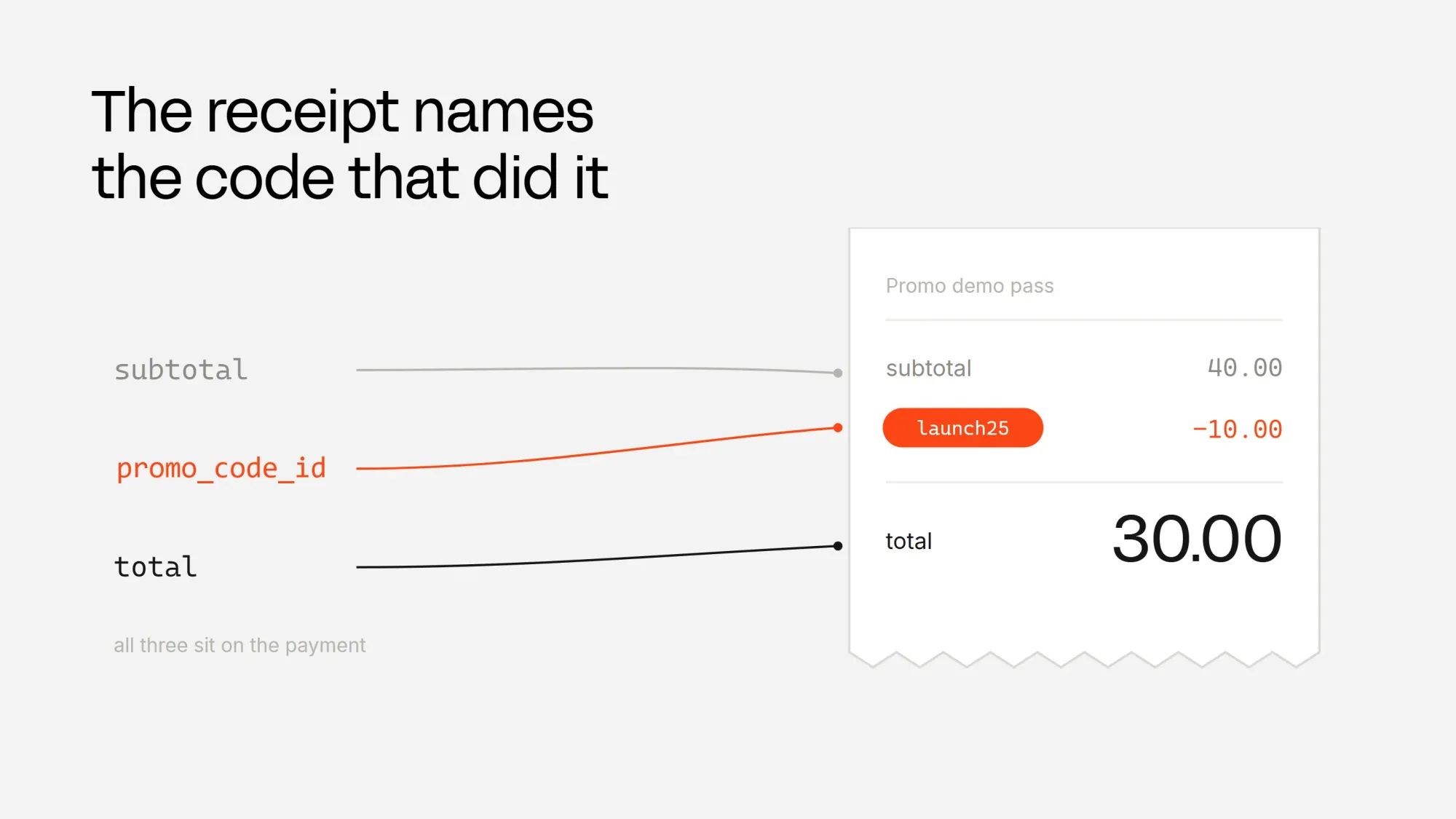
subtotalis the price before the discounttotalis what the buyer paidpromo_code_idnames the code that applied the discount
The payment only carries the code's ID, so we fetch the code itself to show its name and discount. Its amount_off is the same fraction we talked about before, so a 25% code reads 0.25 here too, and it goes through toDisplayAmount like everywhere else.
Go to lib/ and create a file called receipt.ts with the following content:
import { WhopError } from "@whop/sdk";
import { getWhop } from "@/lib/whop";
import { toDisplayAmount } from "@/lib/promo";

export type ReceiptCheck =
  | { state: "paid"; paid: string; saved: string; code: string | null; discount: string | null }
  | { state: "pending" }
  | { state: "invalid" };

export async function readReceipt(paymentId: string): Promise<ReceiptCheck> {
  if (!/^pay_[A-Za-z0-9]{4,60}$/.test(paymentId)) return { state: "invalid" };

  let payment;
  try {
    payment = await getWhop().payments.retrieve({ id: paymentId });
  } catch (error: unknown) {
    if (error instanceof WhopError && error.statusCode === 404) return { state: "pending" };
    throw error;
  }

  if (payment.product_id !== process.env.WHOP_PRODUCT_ID) return { state: "invalid" };
  if (payment.status === "pending" || payment.status === "open") return { state: "pending" };
  if (payment.status !== "paid") return { state: "invalid" };

  const money = new Intl.NumberFormat("en-US", {
    style: "currency",
    currency: (payment.currency ?? "usd").toUpperCase(),
  });
  const before = Number(payment.subtotal?.amount ?? 0);
  const paid = Number(payment.total?.amount ?? 0);
  const promo = payment.promo_code_id
    ? await getWhop().promoCodes.retrieve({ id: payment.promo_code_id })
    : null;

  return {
    state: "paid",
    paid: money.format(paid),
    saved: money.format(Math.round((before - paid) * 100) / 100),
    code: promo?.code ?? null,
    discount:
      promo && promo.promo_type === "percentage"
        ? `${toDisplayAmount("percentage", promo.amount_off)}%`
        : promo
          ? `$${promo.amount_off.toFixed(2)}`
          : null,
  };
}
Payments can take a moment before they become readable after the checkout, so even missing or still-processing ones count as pending. The page asks the buyer to refresh instead of calling the payment a failure.
The page now has two jobs. With payment_id and status=success in the address, it shows the receipt. Without them, it shows the checkout.
Update app/page.tsx with the following content:
import { PromoCheckout } from "@/components/PromoCheckout";
import { getCheckoutConfiguration } from "@/lib/checkout";
import { checkPromoCode } from "@/lib/promo-lookup";
import { readReceipt } from "@/lib/receipt";

export default async function Home({
  searchParams,
}: {
  searchParams: Promise<{ promo?: string; payment_id?: string; status?: string }>;
}) {
  const { promo, payment_id, status } = await searchParams;

  if (payment_id && status === "success") {
    const receipt = await readReceipt(payment_id);

    return (
      <main>
        <h1>Thanks for your purchase</h1>
        {receipt.state === "paid" && (
          <p>
            You paid {receipt.paid} and saved {receipt.saved}
            {receipt.code ? ` with ${receipt.code} (${receipt.discount} off)` : ""}.
          </p>
        )}
        {receipt.state === "pending" && (
          <p>Whop is still confirming your payment. Refresh this page in a moment.</p>
        )}
        {receipt.state === "invalid" && <p>We could not find that payment.</p>}
      </main>
    );
  }

  const check = promo ? await checkPromoCode(promo) : null;
  const checkoutConfiguration = await getCheckoutConfiguration();

  return (
    <main>
      <h1>Promo demo pass</h1>
      {check && !check.usable && <p>{check.reason} The checkout opens at the full price.</p>}
      {check?.usable && (
        <p>
          {check.promo.label} with {check.promo.code}, so you pay ${check.preview.toFixed(2)}
        </p>
      )}
      <PromoCheckout
        checkoutConfiguration={checkoutConfiguration}
        promoCode={check?.usable ? check.promo.code : undefined}
        environment={process.env.WHOP_SANDBOX === "true" ? "sandbox" : "production"}
      />
    </main>
  );
}
Fulfill orders from a webhook
The return page lets buyers know what happened, but they can close the tab before it loads. So we give access and fulfill orders from the payment.succeeded webhook instead. Our checkout API tutorial uses the same webhook pattern.
Whop sends these webhook payloads to our server with every successful payment, with the same promo_code_id, subtotal, and total information of the payment.
To get your webhook secret, go to the sandbox dashboard of your whop and open the Developer page. Under the webhook section, click "Create a webhook", point it at https://your-site.com/api/webhooks/whop, and subscribe to the payment.succeeded event.
Once you create the webhook, copy its secret from the Secret column into WHOP_WEBHOOK_SECRET.
Keep in mind that Whop can't reach your localhost, so test this route on your deployed website. Go to app/api/webhooks/whop/ and create a file called route.ts with the following content:
import type { Whop } from "@whop/sdk";
import { unwrapWebhook } from "@whop/sdk/helpers";

type PaymentEvent = { type: string; data: Whop.Payment };

export async function POST(request: Request) {
  let event: PaymentEvent;
  try {
    // The signature covers the raw body, so read it as text and parse nothing first.
    event = unwrapWebhook<PaymentEvent>(await request.text(), {
      headers: Object.fromEntries(request.headers),
      key: process.env.WHOP_WEBHOOK_SECRET,
    });
  } catch {
    return new Response("Invalid signature", { status: 400 });
  }

  if (event.type === "payment.succeeded") {
    const payment = event.data;
    // Grant access here. promo_code_id names the code the buyer used, if any.
    console.log(payment.id, payment.total?.amount, payment.promo_code_id);
  }

  return new Response("OK");
}
Pause, resume, and archive a code
A code can be in three states. Active means it is working, paused (inactive in the API) means checkout won't accept the code until you resume it, and archived means the code is finished.
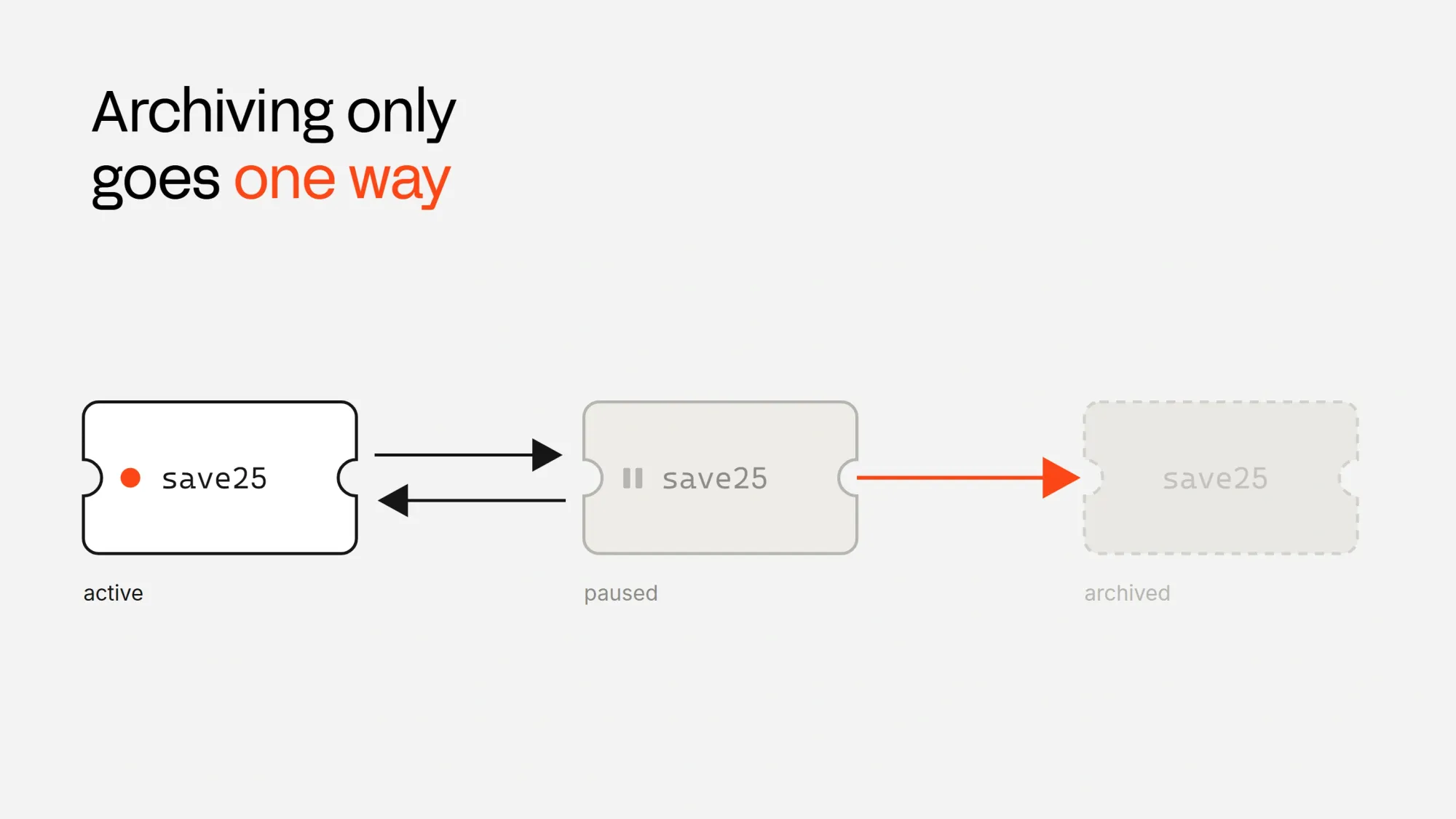
While archiving prevents you from bringing the code back online again, it allows you to reuse its name.
The Whop SDK covers all three states. deactivate pauses a code, activate turns it back on, and delete archives it for good, which is the one step you cannot undo. You can also pause and resume a code from the terminal with whop promo-codes deactivate and whop promo-codes activate using the Whop CLI.
Your admin tools reach all three of them with a route. A PATCH with {"action":"pause"} or {"action":"resume"} pauses or resumes a code, and a DELETE archives it. Go to app/api/promo-codes/[id]/ and create a file called route.ts with the following content:
import { z } from "zod";
import { WhopError } from "@whop/sdk";
import { getWhop } from "@/lib/whop";
import { isAdmin } from "@/lib/admin";
import { toSummary, type RawPromoCode } from "@/lib/promo";

type Context = { params: Promise<{ id: string }> };

const patchSchema = z.object({ action: z.enum(["pause", "resume"]) });

export async function PATCH(request: Request, { params }: Context) {
  if (!isAdmin(request)) {
    return Response.json({ error: "unauthorized" }, { status: 401 });
  }
  const { id } = await params;
  const parsed = patchSchema.safeParse(await request.json().catch(() => null));
  if (!parsed.success) {
    return Response.json({ error: "invalid_input" }, { status: 400 });
  }

  try {
    const promoCodes = getWhop().promoCodes;
    const code =
      parsed.data.action === "pause"
        ? await promoCodes.deactivate({ id })
        : await promoCodes.activate({ id });
    return Response.json({ code: toSummary(code as unknown as RawPromoCode) });
  } catch (error: unknown) {
    return failure(error);
  }
}

export async function DELETE(request: Request, { params }: Context) {
  if (!isAdmin(request)) {
    return Response.json({ error: "unauthorized" }, { status: 401 });
  }
  const { id } = await params;

  try {
    const { deleted } = await getWhop().promoCodes.delete({ id });
    return Response.json({ archived: deleted });
  } catch (error: unknown) {
    return failure(error);
  }
}

function failure(error: unknown) {
  if (error instanceof WhopError) {
    return Response.json({ error: error.message }, { status: error.statusCode ?? 400 });
  }
  throw error;
}
Moving to production
Everything in this guide runs on the Whop sandbox, which lets us test the checkout and the backend without moving real money. Here is how to switch to production:
- Create a whop at Whop.com, build the product and plan again there, then update
WHOP_PRODUCT_IDandWHOP_PLAN_IDin your environment variables. - Create a new company API key with the same permissions and set it as
WHOP_COMPANY_API_KEY. - Set
WHOP_COMPANY_IDto your new company's ID. - Create the webhook again in your live dashboard, and put its new secret in
WHOP_WEBHOOK_SECRET. - Delete
WHOP_SANDBOX, or set it tofalse. The server client and the checkout both switch to production with it. - Set
APP_URLto your live https address. The checkout configuration is created again for the production plan the first time the page loads. - Set
ADMIN_API_KEYto a new long random string.
Use Whop in your projects
Promo codes are just one addition Whop can make to your app. You can add a checkout API, express checkout, free trials, paywalls, and more.
If you want to learn more about how you can use Whop in your app, take a look at our other tutorials and the Whop developer docs.